
Inviting a User:
1. Login to portal.pollensense.com.
2. Click on Organization in the black ribbon at the top left of the screen.
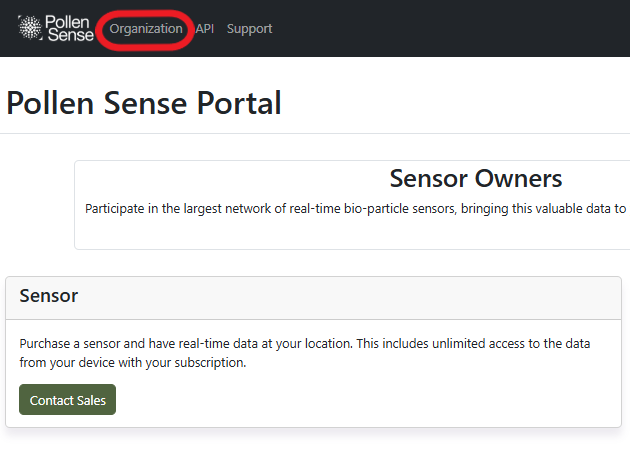
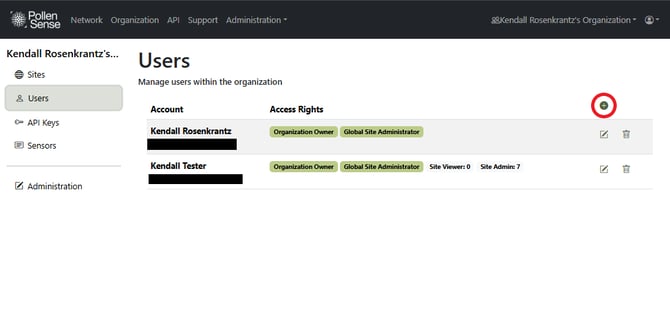
3. With the Organization page now open, select Users at the left of the screen. This will show you the list of Users within your Organization.
4. To add a new User click on the green plus icon at the top right of the screen. This opens the New User Window.
5. In the New User Window, enter the email address of the User you would like to add, along with the permissions you would like to grant them. More information on permissions can be found at the Organization Permissions page.

6. Specific Sites can be assigned to Users if needed in order to maintain confidentiality.
7. Once the new User’s email and permissions have been entered, click the green Create button to immediately send the invite to their email.
NOTE: This invite may be moved to the User’s Spam or “All Mail” (or similar) folders when sent. Please advise them to check there if they do not initially see it.
8. If the new User does not already have a portal.pollensense.com account, when they accept the invite, they will be prompted to create one. Once finished, they will automatically be added to your Organization.
The above process must be carried out for each new User. It is currently not possible to add multiple new Users at once.