Skip to content
  • There are no suggestions because the search field is empty.

APS-400 Fan Replacement

Do not perform the following instructions without approval from a Pollen Sense Technician, doing so may cause irreversible damage to your sensor. Please review the instructions in their entirety before attempting to operate on the sensor.

In order to properly perform the Fan Replacement, you should relocate the sensor to a clean, indoor location where you are free to take it apart and will not lose parts/screws. Do not have the power connected while operating on the sensor. Various hand tools including Torx & hex bit screwdrivers, tweezers, and snips are required to complete the following instructions. 

Nomenclature
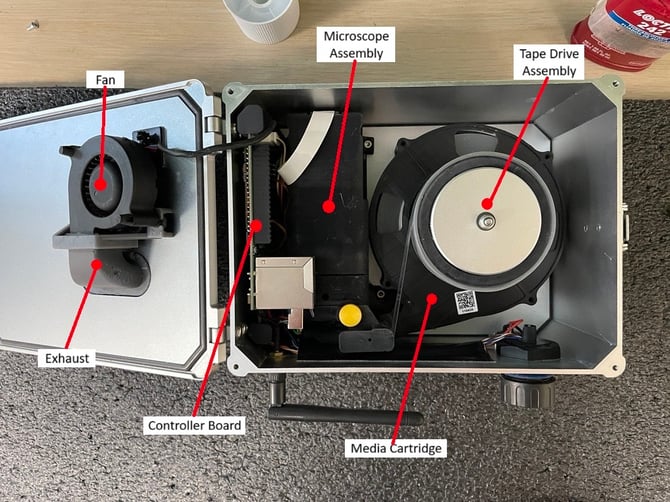
sens nomean

Fan Replacement Instructions

These instructions are split into two portions, based on the hardware of your sensor. More recent models (V1.4 and newer) grant much easier access to the fan than our older models (V1.2 and previous). To know the model of your sensor and the instructions you should follow, view the images below:

V1.2 & Previous Models
(Harder Access)

V1.4 & Newer Model
(Easier Access)

1.2boardfan 1.5boardfan
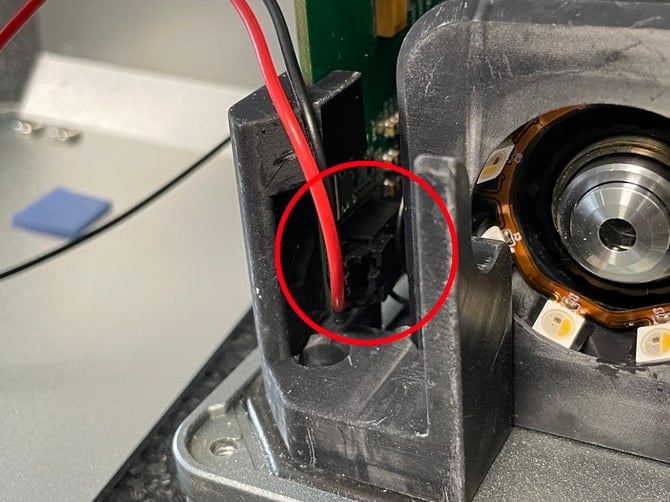
  1. Unplug the sensor from power and Ethernet connection (if applicable).

  2. Open the lid of the sensor and remove the media cartridge.

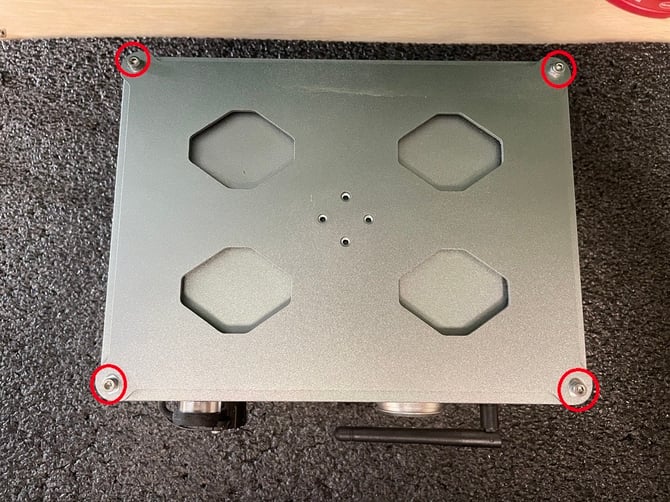
  3. Close the lid and turn the sensor over to reveal 4 screws holding the base plate and enclosure together. Carefully remove these 4 screws (circled in red below), keeping the lid faced down.
    back of sensor

  4. Holding the sensor together, turn it back over so the lid is facing up.

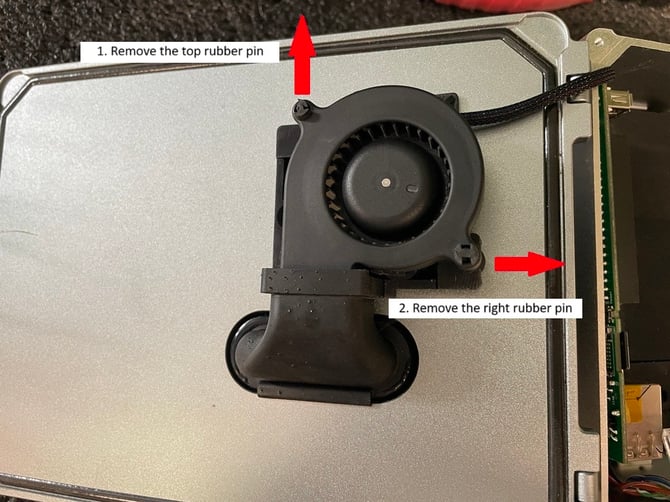
  5. Open the lid and remove the Fan from its mount. Do this by pushing the top rubber pin away from the fan exhaust, then pulling out the right rubber pin.
    get fan out

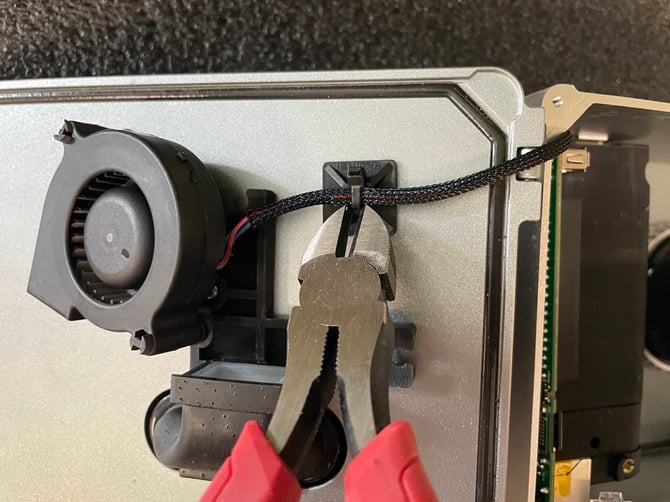
  6. Using snips, cut and remove the zip tie holding the fan cable to the lid.
    snips
  7. Place the fan between the Microscope Assembly and Tape Drive Assembly to keep it out of the way for the following steps.

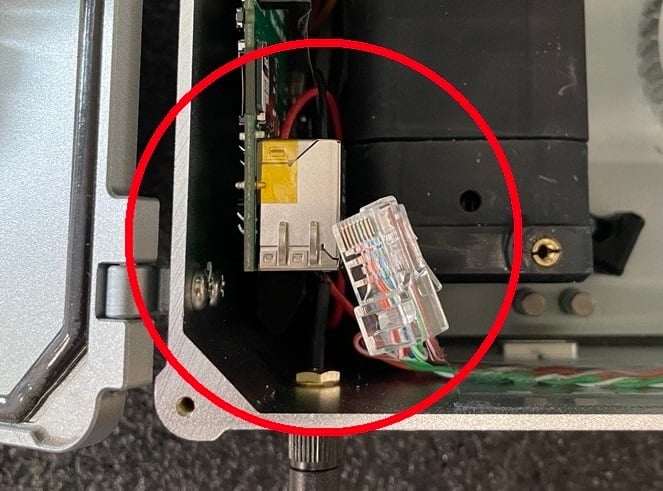
  8. Remove the ethernet cable from the Controller Board. You may have to shift the enclosure around a bit in order to give it enough room to be removed.
    efernet

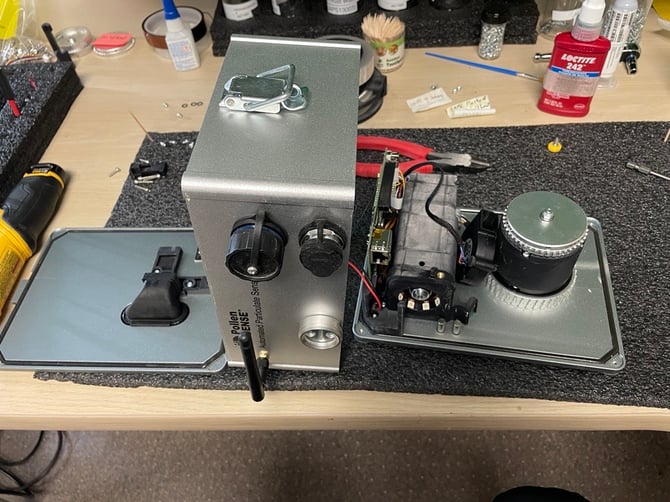
  9. Slowly lift the enclosure straight up from the base plate and lean it on its side to the left of the base plate. There are still some wires connected to the enclosure, be sure not to damage them when removing. 
    eilieen
  10. Remove the power cable from the Controller board.
    ower cable
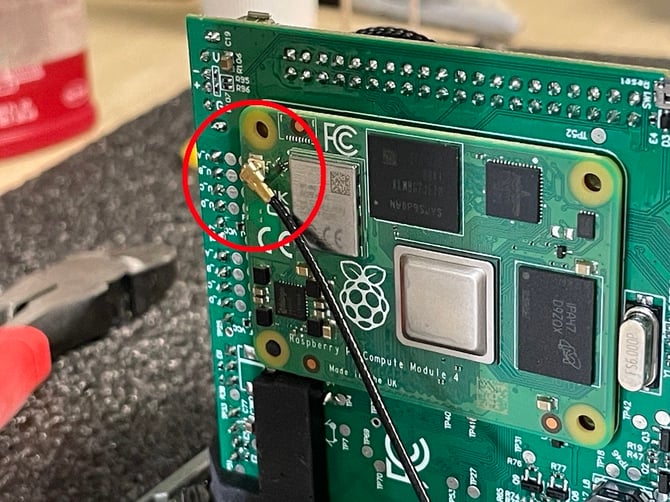
  11. Remove the antenna cable from the Controller Board.
    ant
  12. Set aside the lid and enclosure away from the base plate to give yourself more room to continue operating.

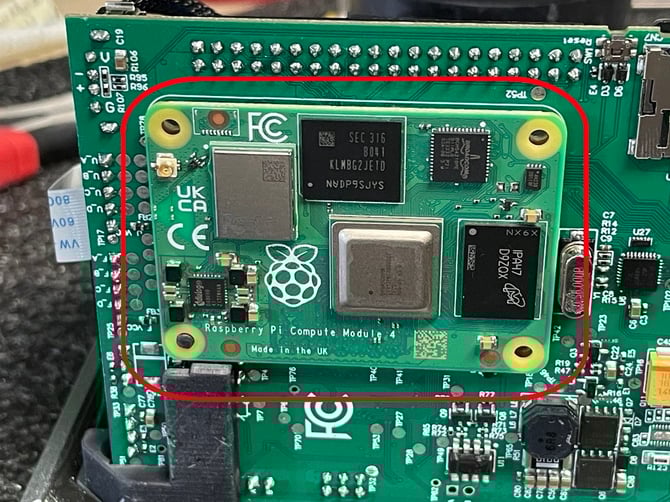
  13. Remove the Raspberry Pi from the Controller Board. Be very gentle when doing this, the parts holding this together are extremely fragile. It is helpful to use tweezers to pry the Raspberry Pi from behind.
    asp pi

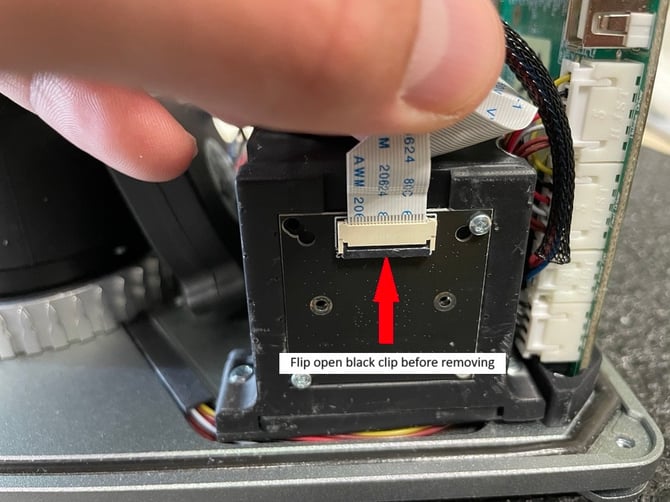
  14. Turn the base plate to view the back side of the Microscope Assembly. Remove the white cable leading into the Microscope Assembly by first flipping open the black clip, then pulling the cable straight out of the connector. Be sure to remember the orientation of this cable inside of the clip, take a picture if needed. Reinserting the cable in the wrong orientation in a later step will cause permanent damage to the sensor and will need to be sent back to Pollen Sense for repair.
    camera clip
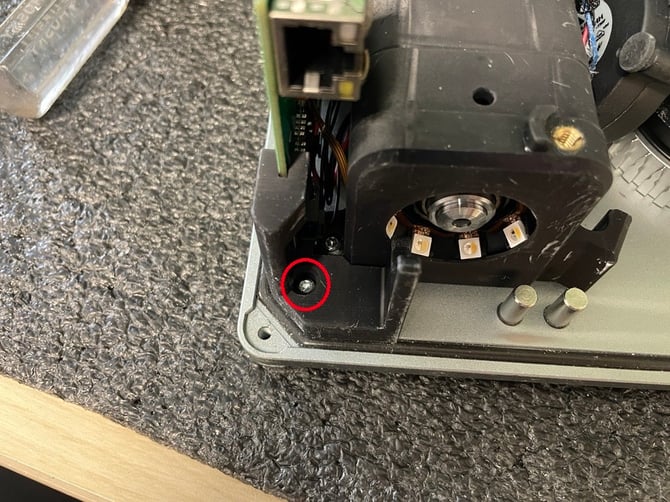
  15. Turn the base plate to now view the front of the Microscope Assembly. Remove the screw in the mount holding the Controller Board in place (circled in red below).

  16. Remove the board mount by sliding it away from the front of the Microscope Assembly.
    front board mount

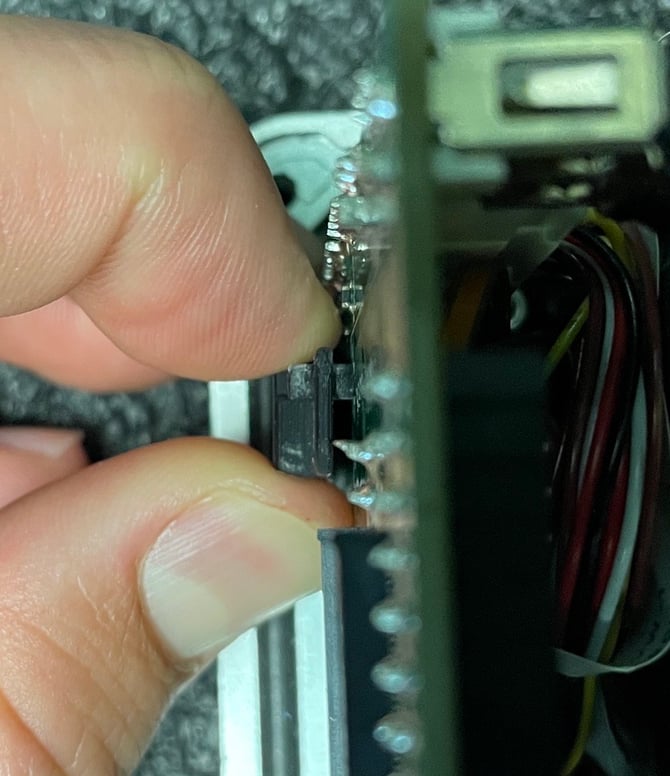
  17. Remove the Controller Board from the board mount towards the rear of the Microscope Assembly. Do so by gently prying the pin of the board mount out of the Controller Board and lifting it up and to the right of the mount. This part is very fragile and can easily break, be extremely careful when performing this operation. 
    ry
  18. Gently set the Controller Board to the left of the base plate.

  19. Locate the Fan cable connector on the Controller Board and remove it. It is recommended to remove this cable by holding the lips on the sides of the clip with tweezers.
    locate fan cli

  20. Discard the removed/broken Fan.

  21. Attach the cable of the replacement Fan to the controller Board in the same location as shown above.

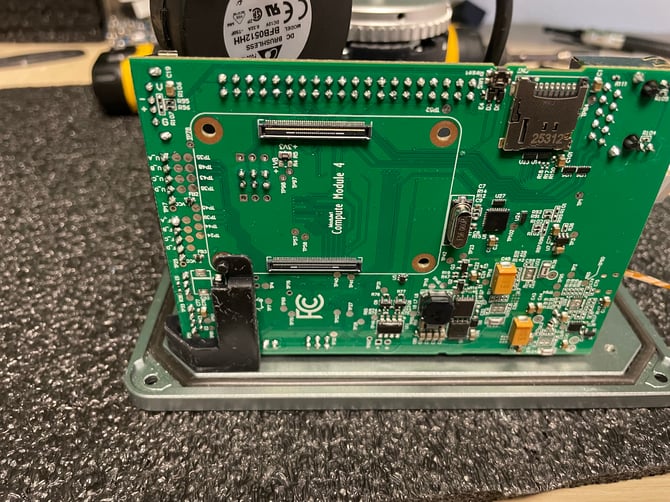
  22. Replace the Controller Board into the mount near the rear of the Microscope Assembly. Ensure that the pin of the mount is inserted into its designated slot on the Controller Board, keeping all of the wires between the Controller Board and Microscope Assembly.
    IMG_7357

    Wire mngmnt

  23. Reinstall the Raspberry Pi onto the controller board, ensuring the pin of the board mount fits into its allotted hole on the Raspberry Pi (circled in red below).

  24. Replace the foam thermal pad onto the CPU of the Raspberry Pi (circled in blue below). Failure to do this will cause the CPU to overheat, potentially causing irreversible damage to the sensor. The thermal foam pad may be stuck to the side of the sensor’s Enclosure.
    piandfoamback

  25. Reinstall the white cable into the rear of the Microscope assembly. Be careful to match the orientation of the cable as you had found it in step 14. Reinserting the cable in the wrong orientation will cause permanent damage to the sensor and will need to be sent back to Pollen Sense for repair.
    camcable back
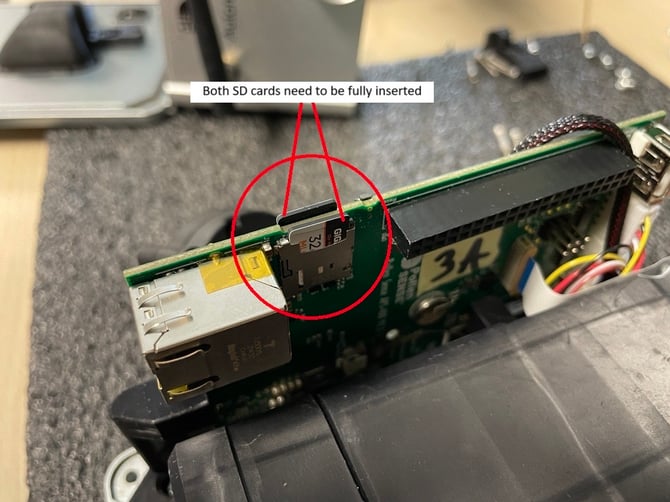
  26. Ensure both micro SD cards are fully installed in the Controller Board, you may need to press them back in.
    sdcards
  27. Set the sensor’s Enclosure on its side and to the left of the Base Plate.

  28. Attach the power cable to the Controller Board.
    powecablback

  29. Attach the antenna cable to the Raspberry Pi.
    antennacalback
  30. Lift the Enclosure and gently place it onto the Base Plate. Ensure that all components are within it and that none of the wires are pinched by the walls. View the image below for proper power cable and antenna cable management.
    wiremgntend
  31. Insert the Ethernet cable into the port on the Controller Board.
    eferenett
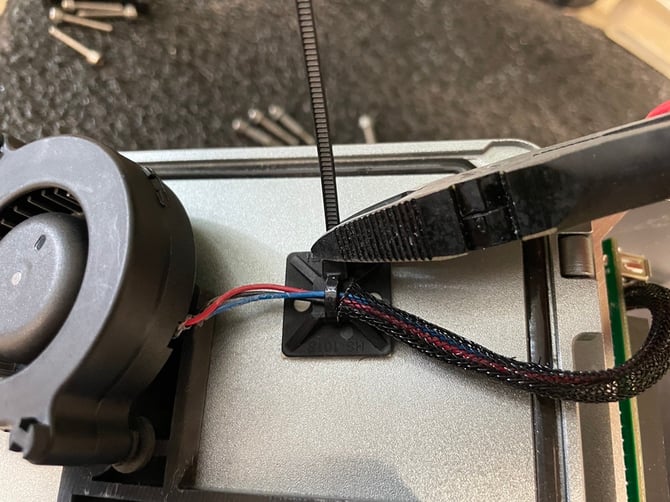
  32. Zip tie the fan cable to the small clip next to the fan’s mount. Cut away the excess zip tie.
    attach zip
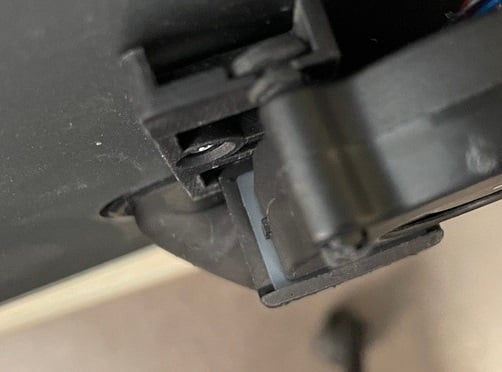
  33. Reinstall the fan into its mount by first inserting the right rubber pin, then rotating the fan until the top rubber pin is in place (step 5 in reverse). Ensure the nozzle of the fan is properly seated in the rubber seal of the fan exhaust.
    rubseal
  34. Close the lid of the sensor and carefully turn it over, keeping all the components together.

  35. Reinstall the 4 screws removed in step 3. Do so in an X pattern to allow even pressure around the seal of the enclosure.

  36. Replace the media cartridge.

  37. Plug the sensor back into power and Ethernet (if applicable).

  1. Unplug the sensor from power and Ethernet Connection (if applicable).

  2. Open the lid of the sensor.

  3. Disconnect the Fan cable from the Controller Board. Pinch the wires of the Fan cable behind its connector and support the Controller Board with other hand while pulling.
    pulloutcable

  4. Remove the Fan from its mount. Do this by pushing the top rubber pin away from the fan exhaust, then pushing out the right rubber pin.
    get fan out
  5. Using snips, cut and remove the zip tie holding the fan cable to the lid.
    snips
  6. Remove the Fan from the sensor and discard.

  7. Retrieve your new Fan and plug in the connector to the Controller Board.

  8. Attach the Fan cable to the cable holder using a zip tie.
    attach zip

  9. Insert the right rubber pin into the Fan mount, then rotate the top rubber pin into the mount. The rubber pins must be inserted into the mount as shown below.

  10. Properly seat the Fan into the white gasket of the Exhaust to prevent leaking.
    faninstallyeet

  11. Close the lid of the sensor, ensuring that the Fan cable is not getting pinched between the Microscope Assembly and the Fan. This pinching will prevent the Fan from reaching its operational RPM.

  12. Reconnect power to the sensor and Ethernet cable (if applicable).


Please notify the Pollen Sense Technician you are in contact with that you have completed these instructions. They will confirm that your sensor is functioning as expected and let you know of any further details.